How to Run Client Meetings on an Online Whiteboard
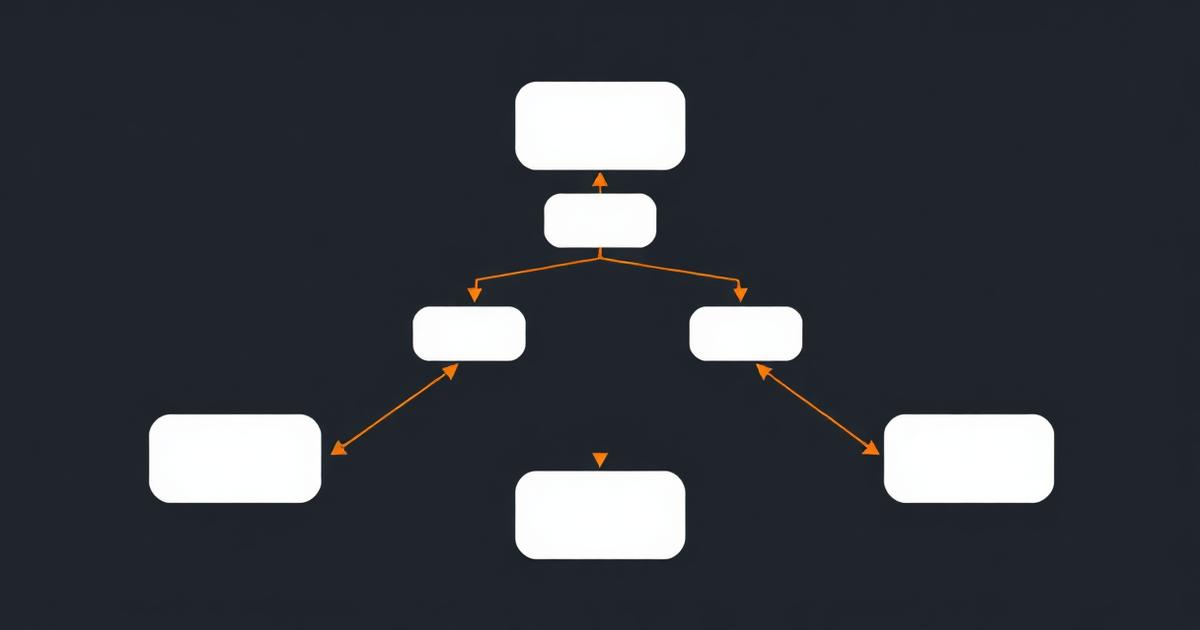
The failure mode I see most often with online whiteboards in client meetings isn't a bad tool choice. It's an empty canvas. You open a blank board, share your screen, and ask the client to "walk me through your process," and now you're both staring at nothing while you improvise structure live. An online whiteboard for client meetings works when you show up with a skeleton already built and let the conversation fill it in.
Quick answer
Run client meetings on an online whiteboard by pre-building the structure (lanes, headers, question prompts) before the call, controlling the cursor for the first few minutes to orient the client, then handing over edit access so they can add and correct items live. Save the board against the client's record afterward so it's findable during delivery, not just during the call.
Why online whiteboards work for client meetings (and where they fail)
A whiteboard beats a slide deck for one specific reason: it makes disagreement visible in real time. When I ask a client "does the deal go to legal before or after the discount approval," a slide can't answer that. A shared board where the client can literally drag a box lets them show me, and half the time they discover their own team disagrees on the answer. That's the actual value — not the drawing, the surfaced misalignment.
Where it fails is when the tool gets in the way. If a client has to sign up for an account, learn a toolbar, or fight lag on a bad connection, you've spent the first ten minutes of a 45-minute call on tool onboarding instead of their business. Nielsen Norman Group's research on remote collaboration tools makes the same point about any shared-canvas tool: the interface has to disappear for the collaboration to work.
Setting up before the call
Pick a template that matches the meeting type
- Discovery call: a simple left-to-right process lane with "trigger → steps → outcome" headers already placed.
- Process mapping workshop: swimlanes by department or role, pre-labeled with the teams you already know are involved.
- Proposal review: a comparison table structure — current state vs. proposed state — rather than a free-form canvas.
Test the share link as a guest, not as yourself
The single most common technical failure is a share link that requires a login the client doesn't have. Log out, open the link in a private browser window, and confirm you can see and (if intended) edit the board before the call starts.
Decide who holds the pen first
For the first three to five minutes, drive the cursor yourself and narrate what you're building. This does two things: it shows the client the structure exists before they're expected to contribute, and it prevents the awkward silence of "go ahead, add whatever you think is missing" to a person who has never used the tool.
Running the session
Once the client understands the shape of the board, hand over control. I usually say: "feel free to drag anything, add a box, or correct me — nothing here is final." That single sentence changes the energy of a call. Clients who were passively nodding start actually correcting your assumptions, which is the entire point of mapping a process visually with them instead of for them.
Keep a running list of open questions in a corner of the board rather than interrupting flow to resolve every disagreement live. I use a small red-bordered section labeled "parking lot" for exactly this. It keeps momentum and gives you a clean follow-up list.
Handling multiple stakeholders
Client meetings with more than three attendees on a shared board tend to fracture into side conversations. Two techniques help:
- Ask one person to be the "board owner" who makes the actual edits, while others suggest verbally. This reduces conflicting simultaneous edits.
- If the tool supports it, use named cursors so you can see who is adding what — this matters when a compliance or finance stakeholder needs to be credited for a specific requirement later.
What to do with the board after the call
This is where most teams drop the ball. The board that was so useful live becomes an orphaned tab that nobody can find during delivery. Two habits fix this:
- Export immediately. Within an hour of the call, export a PNG or PDF snapshot and attach it to your notes, even if the live board stays editable elsewhere.
- Attach it to the client record, not your personal workspace. If your whiteboard tool has no concept of a client record, you're relying on manual folder discipline, which degrades within a quarter for most teams I've worked with. This is the actual reason EvronStudio ties boards to the same client record as tasks and docs — so the artifact from the meeting is exactly where the delivery team looks for it next.
Comparison table: whiteboard tools for client-facing use
| Tool | Best for | Guest access friction | Ties to client record |
|---|---|---|---|
| Miro | Rich open-canvas workshops, templates library | Low — link-based guest access works well | No native client-record concept |
| FigJam | Design-adjacent teams, sticky-note brainstorms | Low | No |
| Google Jamboard | Very simple, quick sketches | Low, but limited feature depth | No |
| EvronStudio | Process boards tied to ongoing client delivery | Low — portal link, no signup required for clients | Yes, board lives on the client record |
| Whiteboard.fi | Classroom-style teaching contexts | Low | No |
Miro remains the deepest tool here for pure workshop facilitation — its template library and open canvas are hard to beat if whiteboarding is the whole job. If the whiteboard is one part of an ongoing client relationship that also involves tasks, files and proposals, a tool that keeps all of that together saves real time over a quarter, even if the canvas itself is a bit more structured and less freeform.
A checklist I run before every client whiteboard call
- Template built and labeled at least 10 minutes ahead
- Share link tested as a logged-out guest
- One sentence ready to invite edits ("drag anything, correct me")
- Parking lot section visible from the start
- Export plan decided (who exports, where it's saved)
None of this requires an expensive tool. What it requires is treating the whiteboard as a meeting artifact with a lifecycle — before, during, and after — rather than a disposable scratchpad. Most of the value from an online whiteboard for client meetings shows up after the call, when the notes are still structured enough to act on. McKinsey's research on visual collaboration in consulting engagements makes a similar point: the artifacts that survive a workshop are the ones with structure built in from the start, not the ones added after the fact.
If you're choosing a tool from scratch, start with where the board needs to live six weeks from now, not how pretty the canvas looks on day one.
Frequently asked questions
- What is the best online whiteboard for client meetings?
- For most small B2B teams the best choice is whichever whiteboard already lives next to your client records, because you'll reuse the board after the call. Miro and FigJam are strong pure-whiteboarding tools; EvronStudio trades some open-canvas flexibility for a board that attaches directly to the client record.
- How do I stop a client whiteboard session from turning into chaos?
- Set a template before the call, not during it. Walk in with lanes or sections already labeled, and control the cursor yourself for the first five minutes so the client sees the structure before they start adding their own sticky notes.
- Should I let the client edit the board directly?
- Yes, for discovery and mapping sessions. Letting a client add or move items themselves surfaces disagreements about the process that they might not say out loud. Just switch to view-only once you move into presenting a proposal.
- How do I keep the whiteboard from disappearing after the meeting?
- Save it somewhere tied to that client, not in a personal workspace folder. Whiteboard tools that don't have a client-record concept require you to build your own naming and folder discipline, which fails within a few months in practice.
- Can I use an online whiteboard on a bad internet connection?
- Most modern whiteboard tools degrade gracefully, but heavy image or video embeds are the first thing to break. Keep client-meeting boards mostly text, shapes and simple diagrams, and save rich media for internal boards.
About the author
James Whitfield writes for EvronStudio on diagramming & boards for small B2B teams. Meet the editorial team.
Part of our guide to Process Mapping Software for Small Businesses: What Actually Matters.
Keep reading
Swimlane Diagram Maker: Map Who Does What, When
A swimlane diagram maker built for cross-team handoffs, not enterprise BPMN. See how to build one, real examples, and tools compared honestly.
Diagramming & BoardsSales Process Flowchart Templates You Can Copy Today
Ready-to-copy sales process flowchart templates for B2B teams: outbound, inbound, and enterprise deal cycles, with what to customize.
Diagramming & BoardsProcess Mapping Software for Small Businesses: What Actually Matters
A practical buyer's guide to process mapping software for small business — what to prioritize, what to skip, and how the top tools compare.