
Running Client Work on a Kanban Board (Setup + Template)

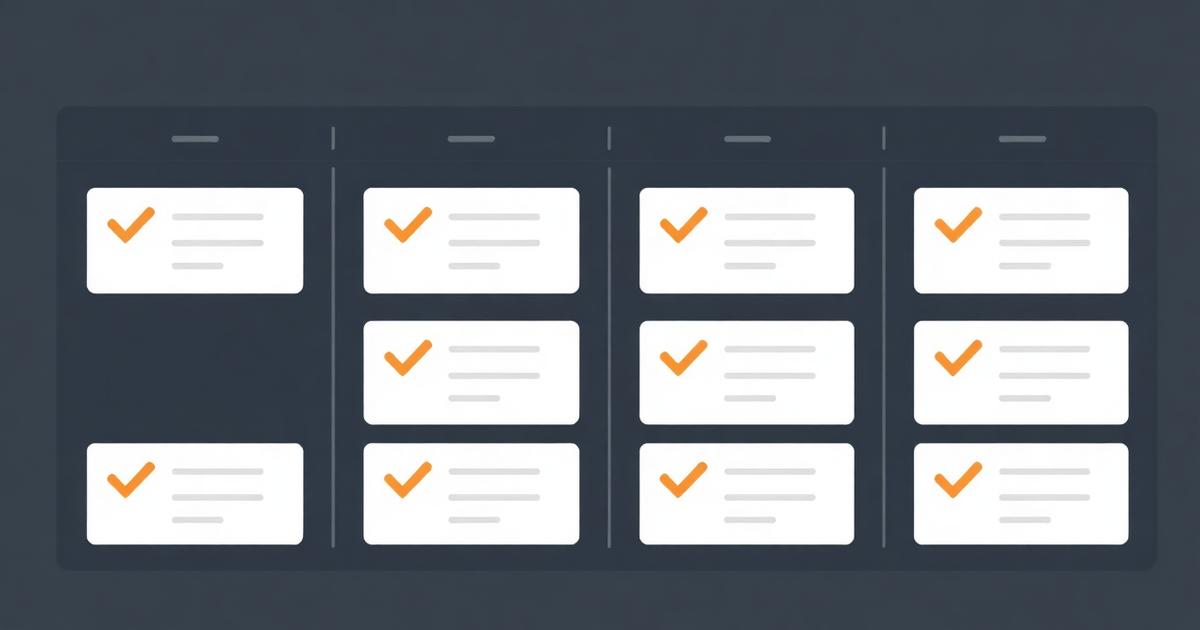
The first kanban board I ever set up for a client-services team had one column: "To Do." Within a month it had forty cards in it and nobody could tell what was actually being worked on versus just logged. A kanban board for client work only earns its keep with the right columns and discipline — otherwise it's just a longer, harder-to-scan to-do list.
Quick answer
A kanban board for client work needs columns that reflect client-facing states — typically Intake, In Progress, Client Review, Revisions, Delivered — plus a way to tag or filter cards by client and a work-in-progress limit to stop columns from becoming unmanageable. Add a Blocked state so stalled work is visibly distinct from active work.
Why generic kanban columns fail client work
To Do, Doing, Done works fine for a personal project. It breaks down for client work because it can't distinguish between "we're actively working on this" and "we're waiting on the client to approve something, so it's stuck through no fault of our own." Both look identical in a generic three-column setup, and that ambiguity is exactly what makes status updates painful — someone has to open every card and check comments to know which is true.
The column template that actually works
I recommend this as a starting point for most service teams, adjusted to your actual delivery process:
- Intake — new requests, not yet scoped or started.
- In Progress — actively being worked on by your team.
- Client Review — sent to the client, waiting on their feedback or approval.
- Revisions — client gave feedback, work is back with your team.
- Delivered — complete and signed off.
Add a Blocked column, or a flag/tag that overlays any column, for anything stalled on a third party (a vendor, a client's own internal approval process) rather than the client's direct review. This distinction matters because "waiting on client review" and "blocked on their legal team for three weeks" have very different follow-up actions.
Comparison: generic vs client-specific columns
| Setup | What it shows | What it hides |
|---|---|---|
| To Do / Doing / Done | Basic progress | Whether work is stuck internally or waiting externally |
| Intake / In Progress / Review / Revisions / Delivered | Client-facing state clearly | Nothing critical if maintained consistently |
| Per-client separate boards | Full detail per client | Cross-client workload at a glance |
| One board, client-tagged, filterable | Both per-client detail and overall workload | Nothing, if tagging discipline holds |
One board or many
Under ten active clients, a single board filtered by client tag usually wins — you can see total team workload and spot when one person is overloaded across clients, which a dozen separate boards makes nearly impossible without manually tallying. Past that scale, or if clients have meaningfully different workflows (a design client's board looks nothing like a bookkeeping client's), splitting by client type rather than by individual client often works better than either extreme. This scales differently depending on team structure — see project management tool for agencies for the agency-specific version of this decision.
Work-in-progress limits: the most underused fix
A soft cap — say, no more than eight cards in In Progress per person — forces a decision when a new urgent request arrives: something else has to move or get deprioritized first. Without this limit, In Progress becomes a parking lot for everything that's technically started but not really being worked on, and the board stops reflecting reality. This ties directly into prioritization discipline covered in how to prioritize tasks at work.
Should clients see the board itself
Some teams expose a filtered, read-only version of the board to clients so they can check status without emailing. This works well when internal comments and cost notes are kept structurally separate from the client-visible fields — covered in depth in task management with client sharing. Don't just hide a column visually and call it client-safe; verify the tool enforces that separation at the permission level, not just the UI.
Where EvronStudio fits
EvronStudio's board view supports client tagging natively since tasks already live on the client record, so filtering "show me everything for Client X" or "show me everything in Client Review across all clients" is a built-in filter rather than a manual tagging discipline you have to maintain by hand. For teams running client delivery work, this removes one of the most common sources of board drift — tags going stale because tagging was a manual, easily-skipped step. See what is a kanban board and how to use it for the fundamentals and how to manage client projects as a freelancer for the solo-operator version of this setup, plus all-in-one CRM and project management for the broader picture.
The kanban method itself traces back to Toyota's production system, and its core insight — visualize work in progress and limit it deliberately — applies as directly to a five-person agency's client work as it does to a factory floor. The board only works if the columns tell the truth about where work actually stands, which for client services means naming client-facing waits explicitly rather than burying them inside a generic "in progress."
Frequently asked questions
- How is a kanban board for client work different from a regular kanban board?
- The structure is the same — columns and cards moving left to right — but a client-work board needs columns that reflect client-facing states, like 'awaiting client feedback,' and needs each card tied to a specific client record so status can be filtered and reported per client.
- Should each client get their own board or one shared board?
- For fewer than ten active clients, one shared board filtered by client tag usually works better than a dozen separate boards, since it lets you see workload across all clients at a glance. Past that, dedicated boards per major client or per client type can reduce clutter.
- What columns should a client-work kanban board have?
- A solid default is Intake, In Progress, Client Review, Revisions, and Delivered. Add a Blocked column if work regularly stalls waiting on the client or a third party, since folding blocked items into In Progress hides the reason work isn't moving.
- How do I stop a kanban board from turning into a graveyard of stale cards?
- Set a work-in-progress limit per column and review the board weekly for cards that haven't moved in over a week. Stale cards usually mean either the task is blocked and mislabeled, or it's no longer actually needed and should be archived.
- Can clients see the kanban board directly?
- Some tools support a filtered, read-only client view of just their cards. This works well for status transparency, but strip internal comments and cost notes from what's client-visible — see the fuller breakdown in task management with client sharing.
About the author
Claire Bennett writes for EvronStudio on task management for small B2B teams. Meet the editorial team.
Part of our guide to Task Management Software for Small Teams: A No-Bloat Guide.
Keep reading
Task Delegation Software: Assign, Track, Actually Follow Up
Task delegation software should make follow-up automatic, not just track who a task is assigned to. Here's what to look for and how to compare.
Task ManagementTo-Do List vs Task Manager: When a List Stops Being Enough
To-do list vs task manager: what actually separates them, and the signs your team has outgrown a simple checklist app.
Task ManagementThe Best Task Management Tools in 2026, Ranked
An honest ranking of the best task management tools in 2026 — pricing, best-fit team size, and where each one falls short.